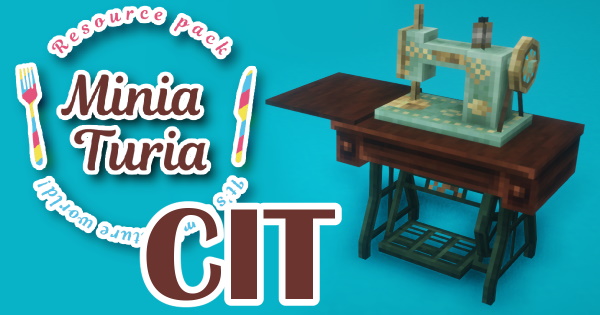
📌 A resource pack that uses OptiFine’s CIT feature to add 3D models—such as furniture and decorative items—as items. You can place them in the world by putting the item into an item frame.
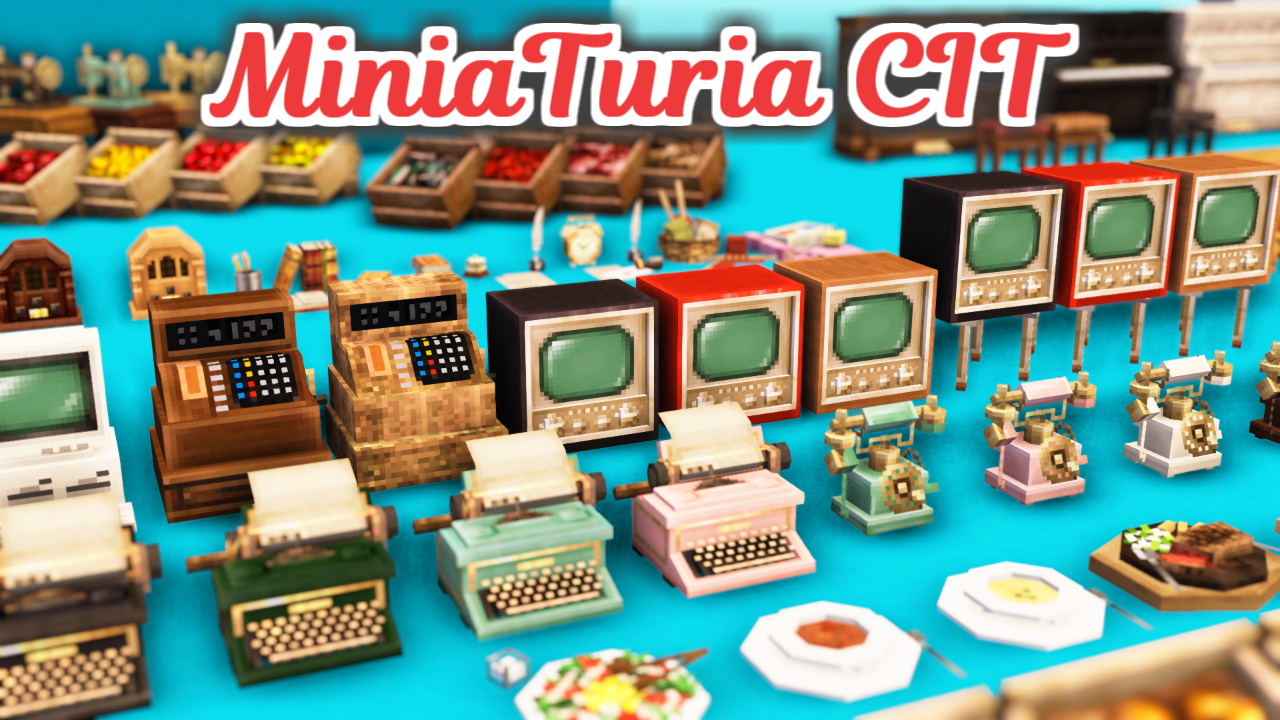
📌 A resource pack that uses OptiFine’s CIT feature to add 3D models—such as furniture and decorative items—as items. You can place them in the world by putting the item into an item frame.
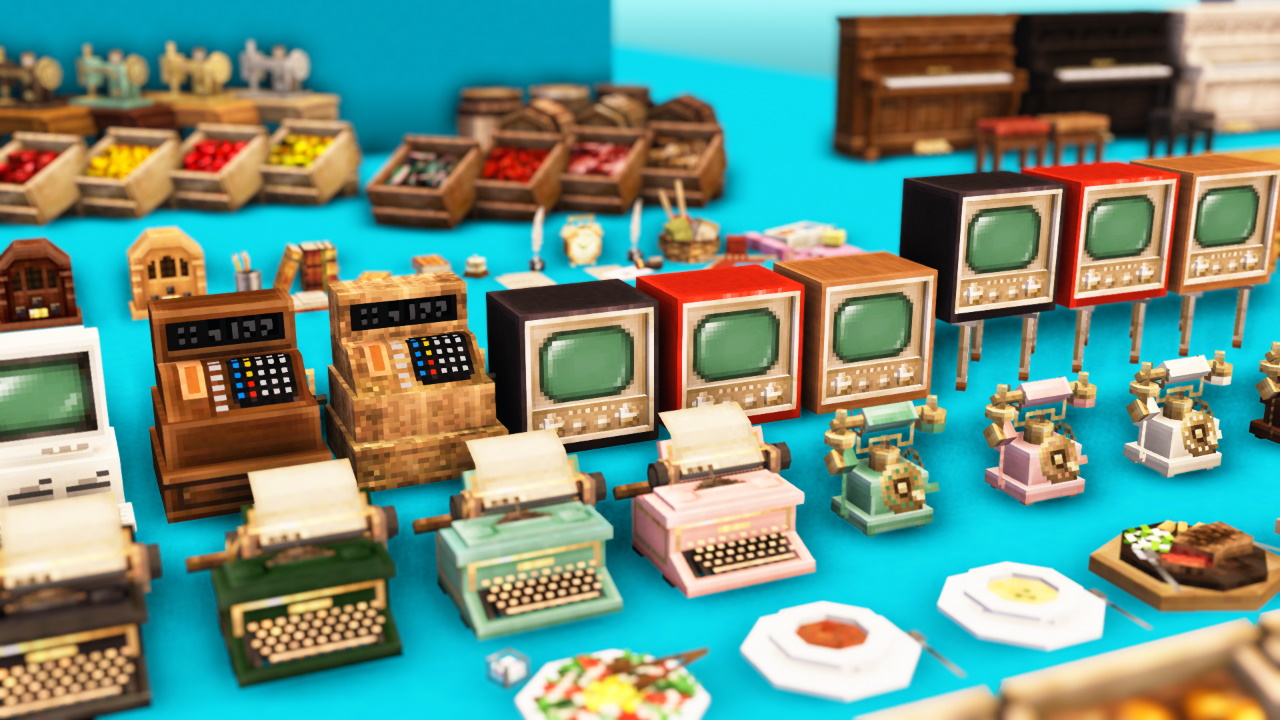
All 3D models can be obtained from “Sugar”! If you want to play in Survival, you’ll need to grow lots of sugar cane.
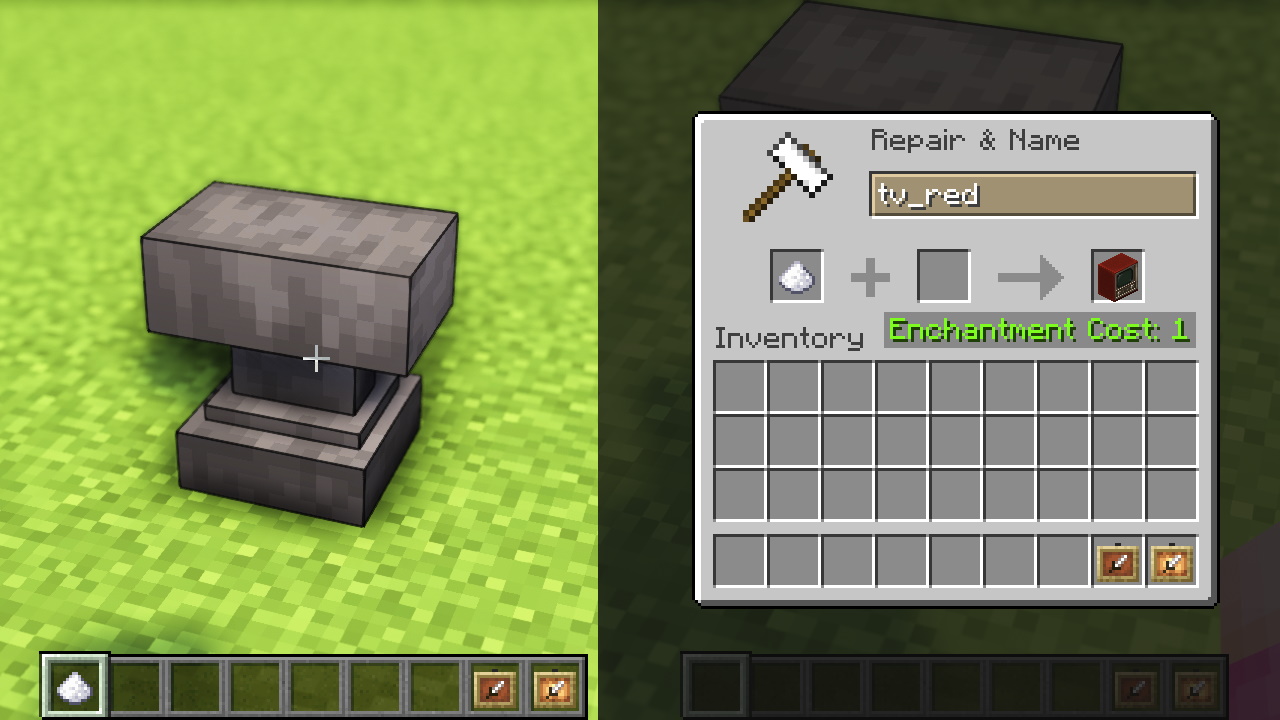
All 3D models can be obtained from “Sugar”! Use an anvil to rename “Sugar” to get the model you want. You can check the mapping between model names and items in the sample world or the catalog.
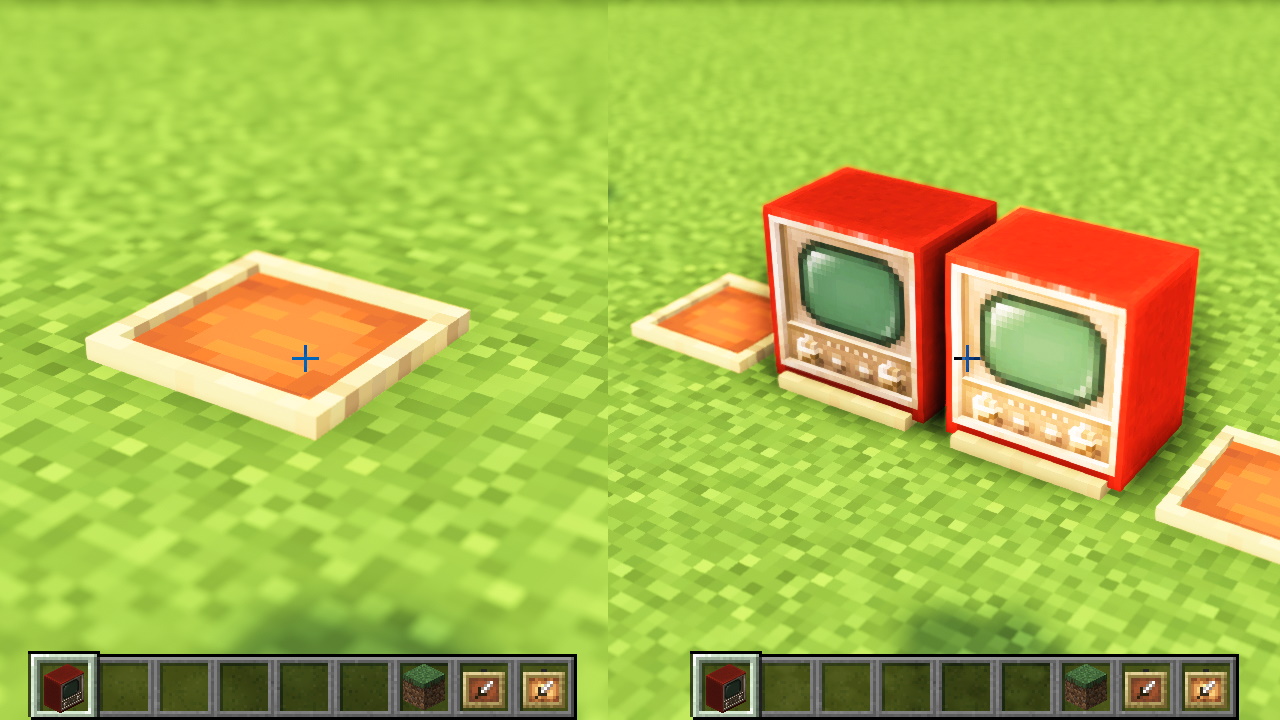
Use an item frame to place 3D items. If you want the object to glow, use a Glow Item Frame! Item Frames and Glow Item Frames can both be made transparent.

By using “Black Stained Glass,” you can also place models like barrels and tables! Place an item frame on top of the glass, and you can put other CIT items on it, too.
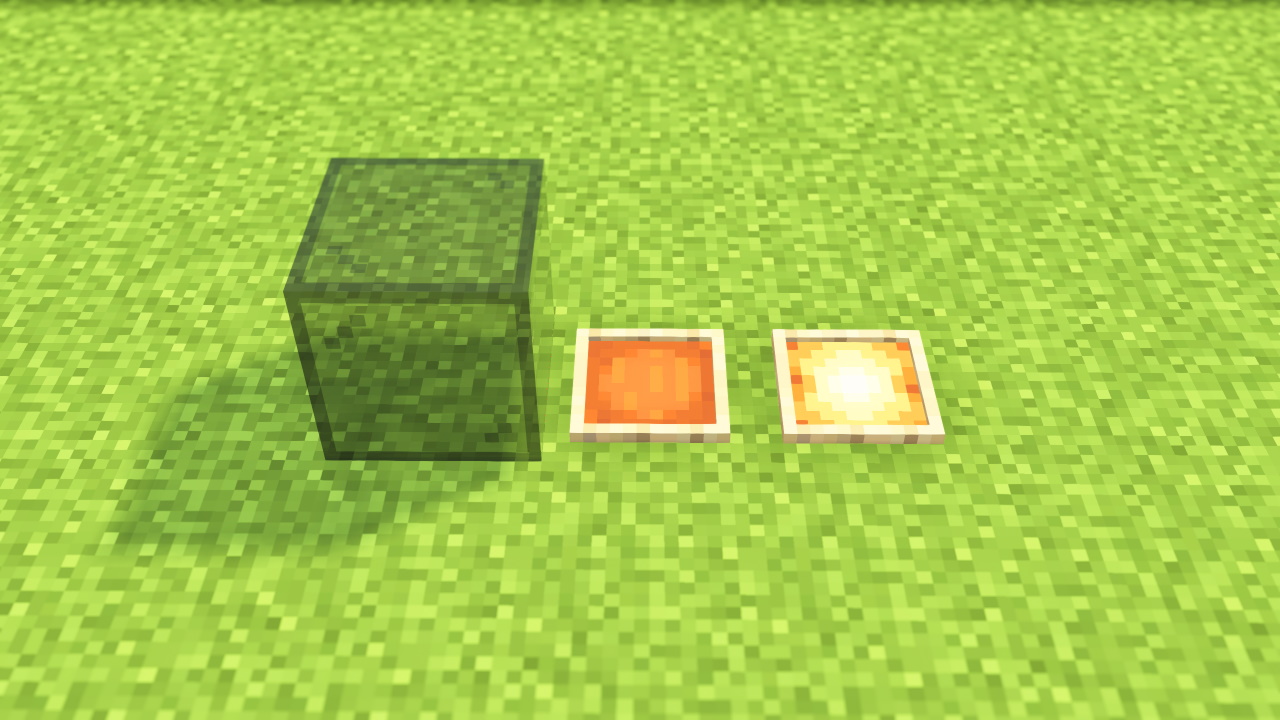
MiniaTuria CIT Frame makes these three things transparent: “Black Stained Glass,” “Item Frame,” and “Glow Item Frame.”
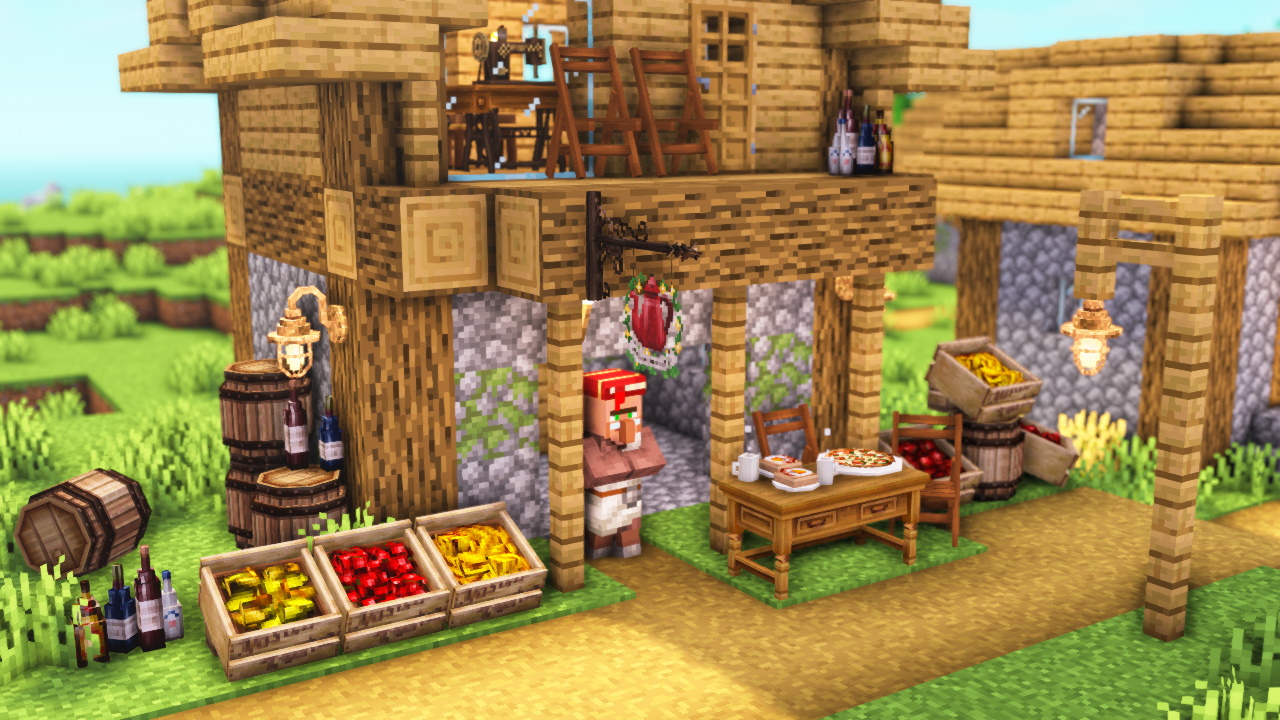
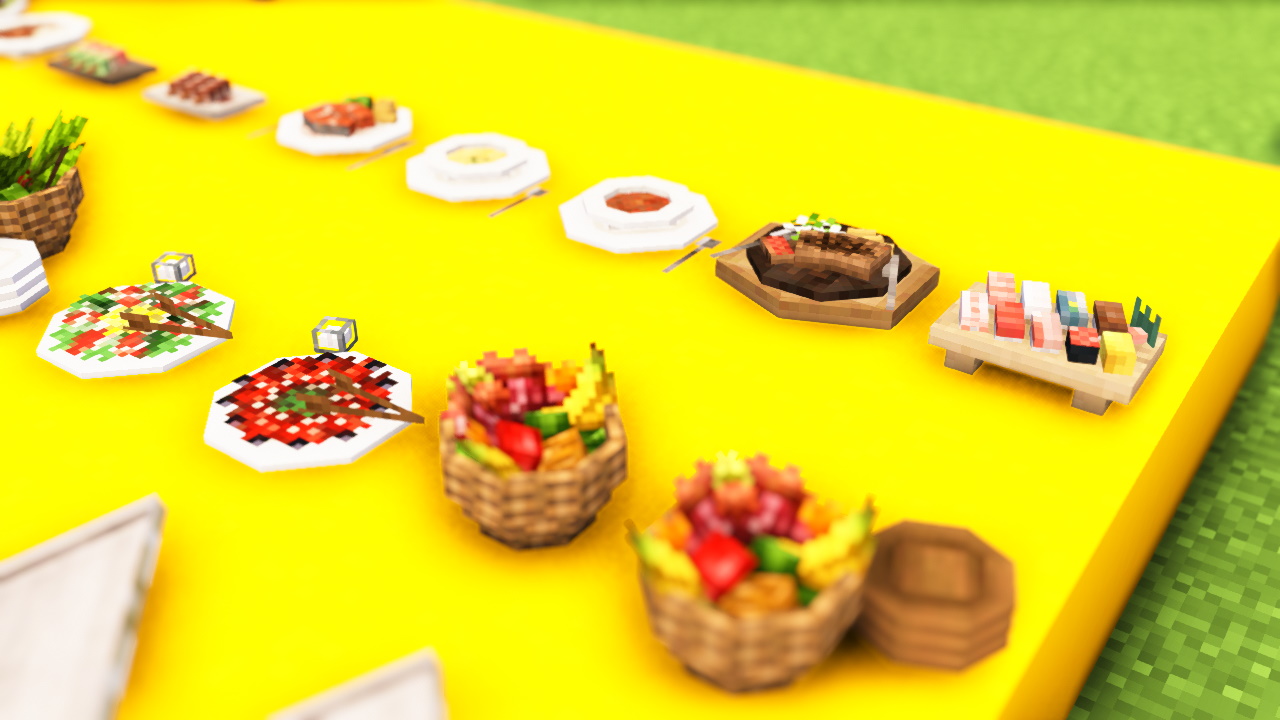
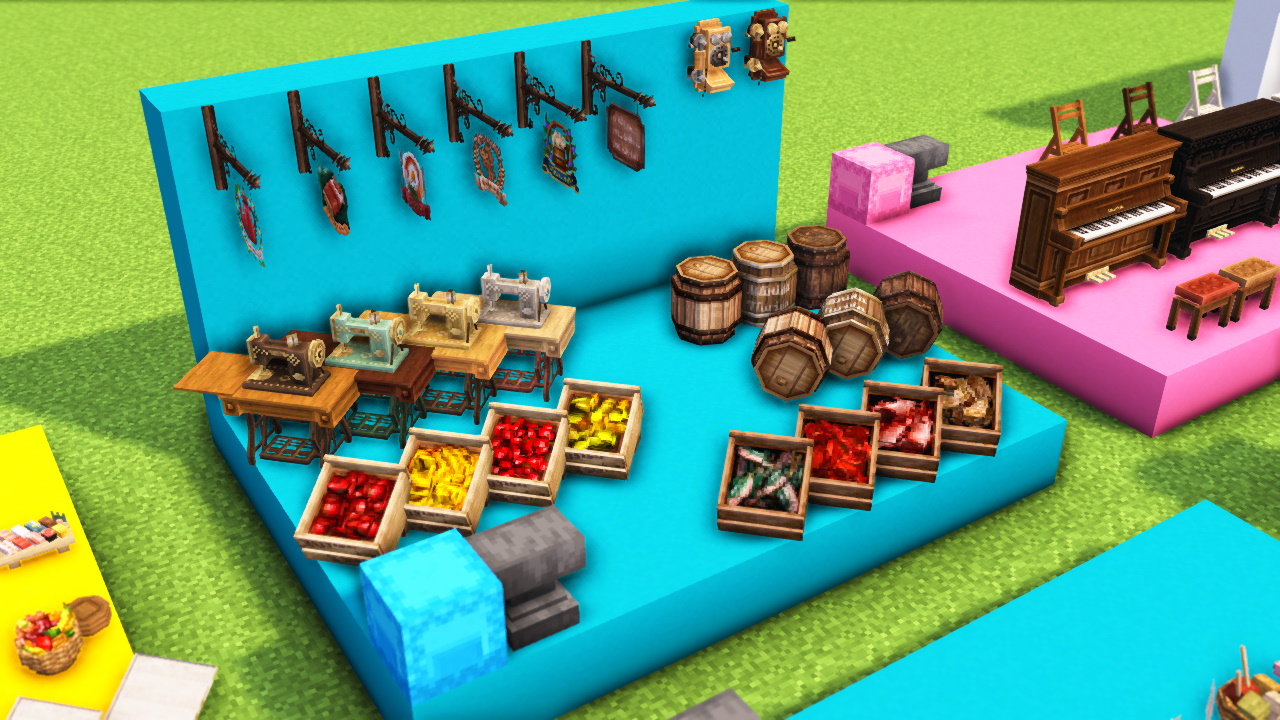
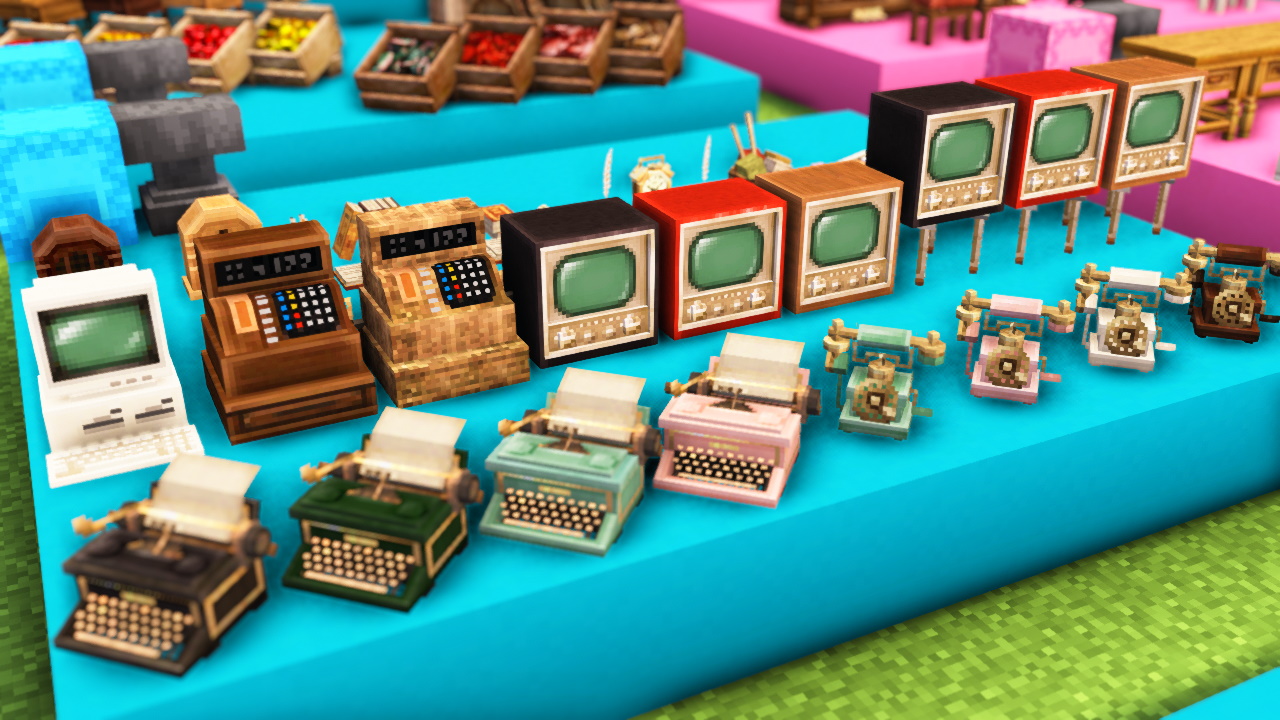
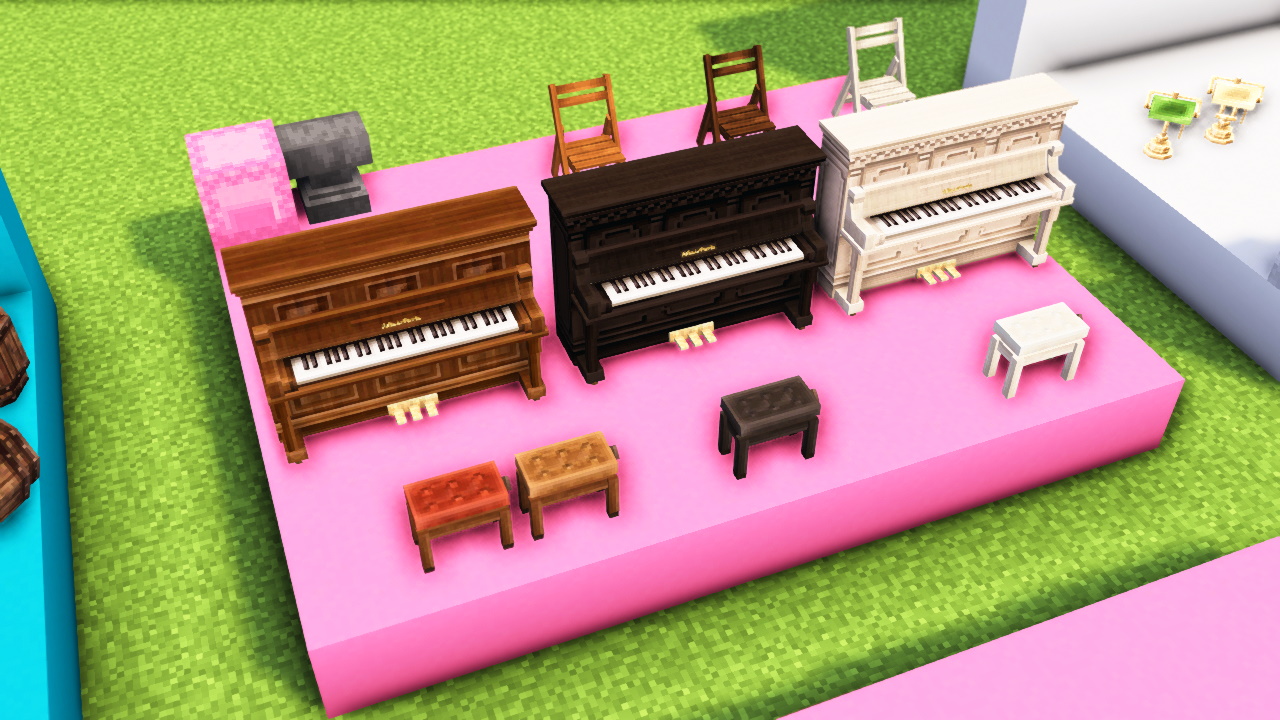
⚠️ Java Edition only. Requires OptiFine. You need both MiniaTuria CIT (adds the 3D models) and MiniaTuria CIT Frame (makes item frames transparent). (You can get both from the Download buttons.)
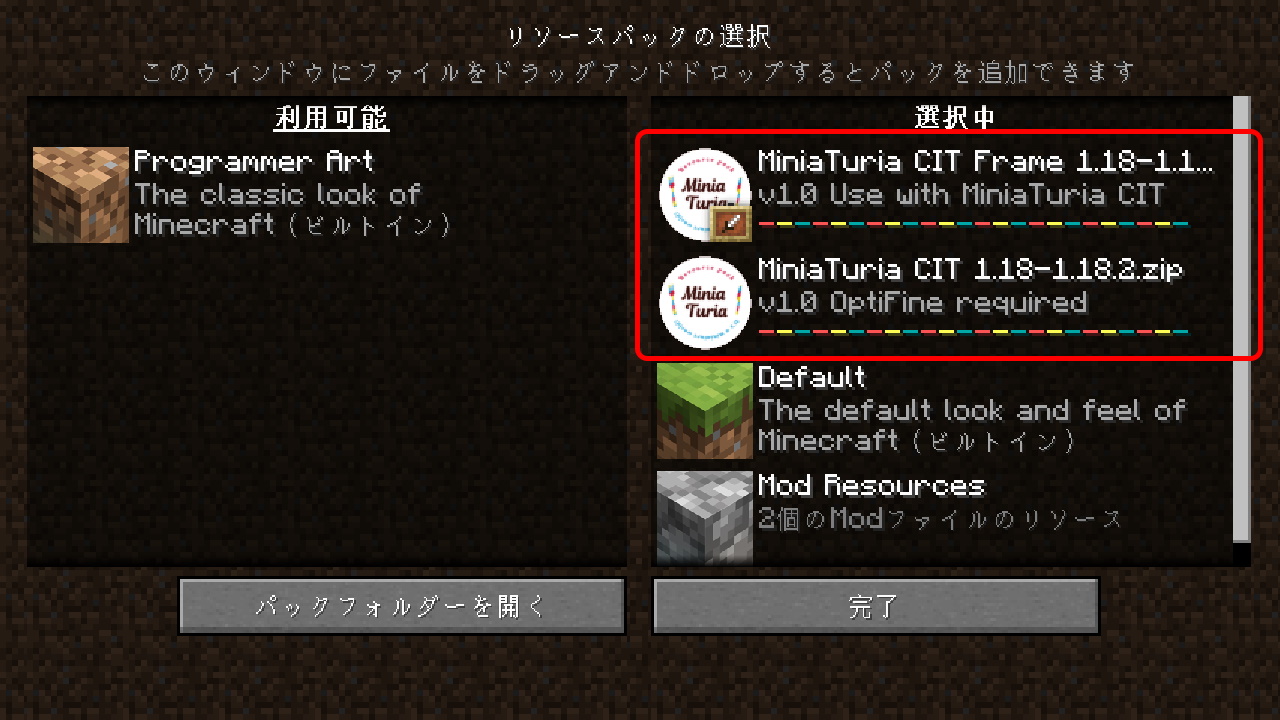
Put the downloaded MiniaTuria CIT.zip and MiniaTuria CIT Frame.zip into your resourcepacks folder. Place MiniaTuria CIT Frame above all other resource packs.
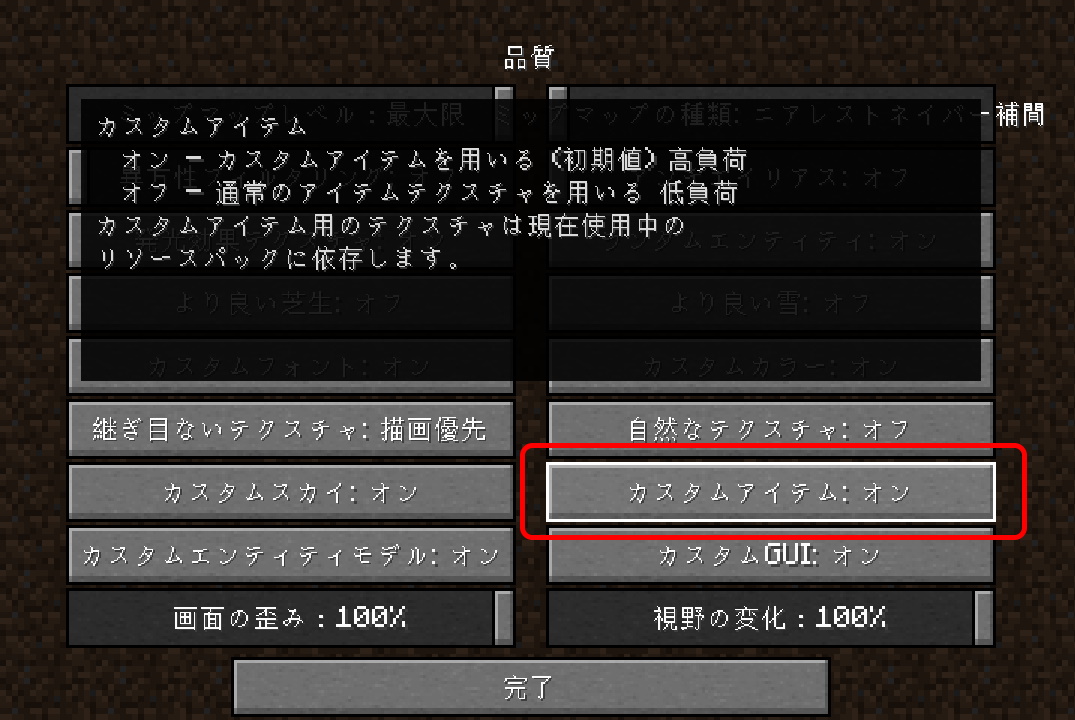
Check OptiFine settings: Video Settings > Quality > Custom Items is ON. That’s the CIT option!
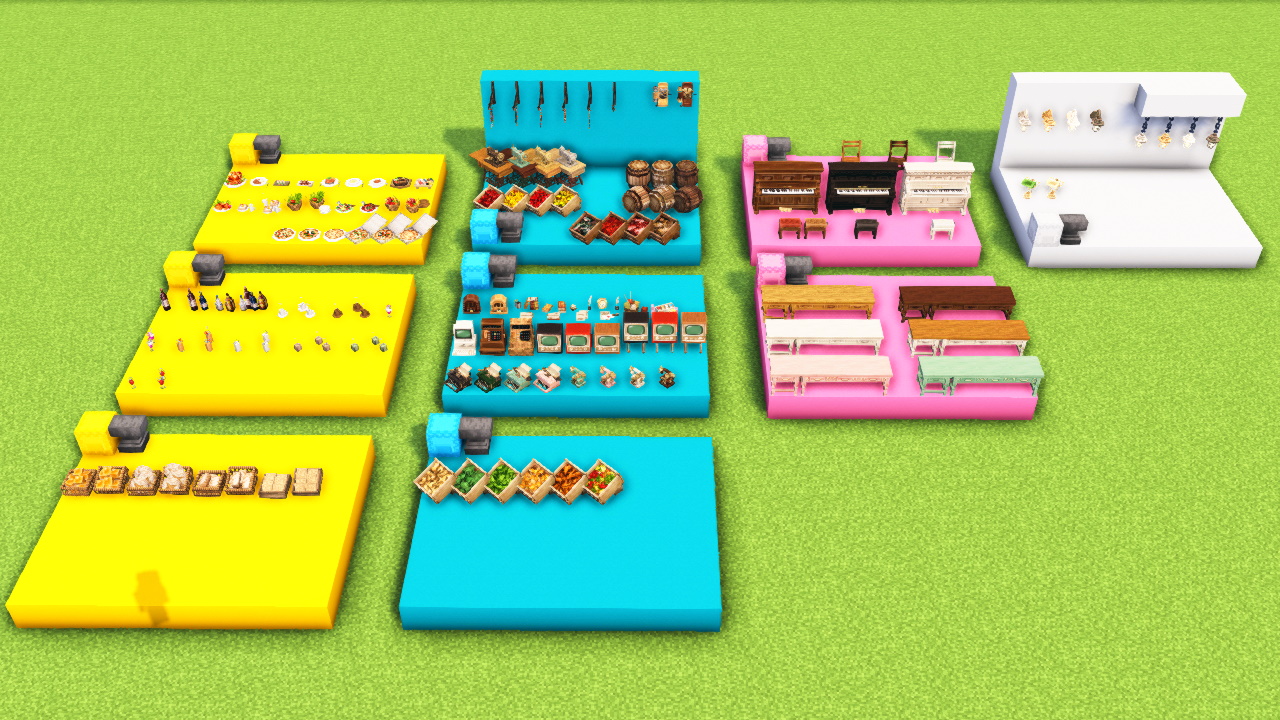
In the sample world, you can see 3D models that are already created by renaming “Sugar.”
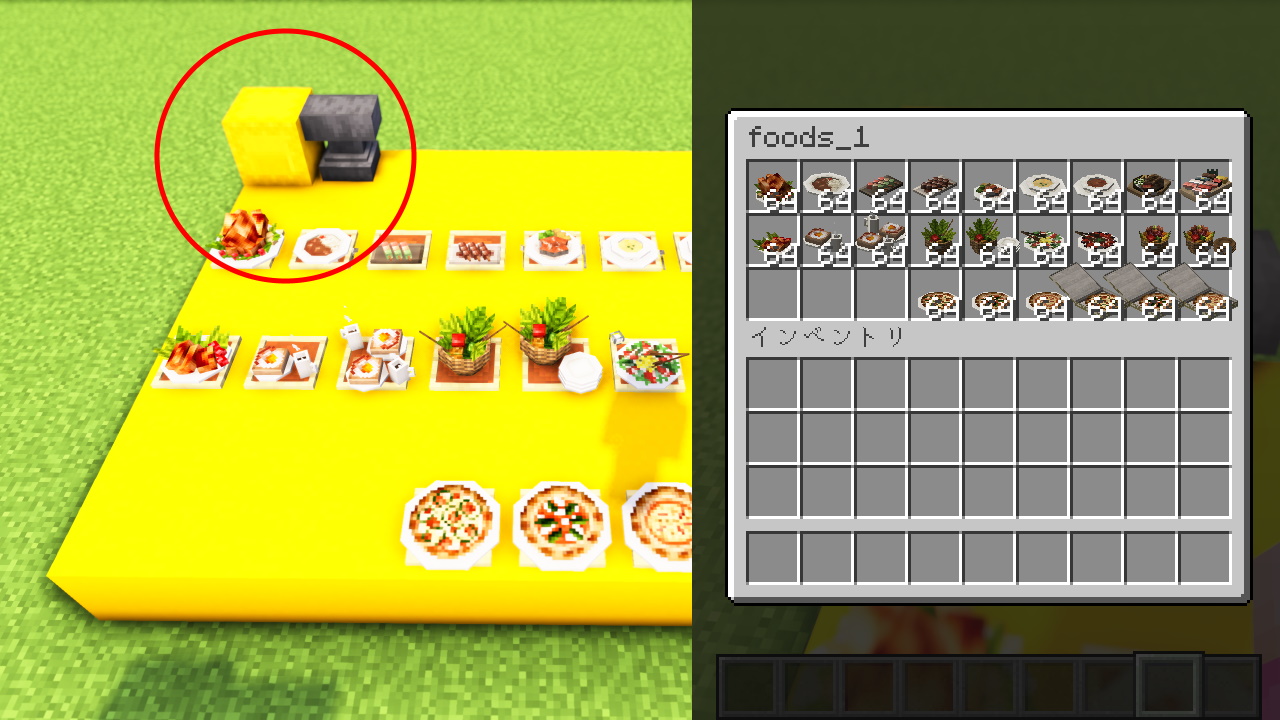
If you save a Shulker Box containing CIT items in your hotbar, you can take it to other worlds (not just the sample world)!
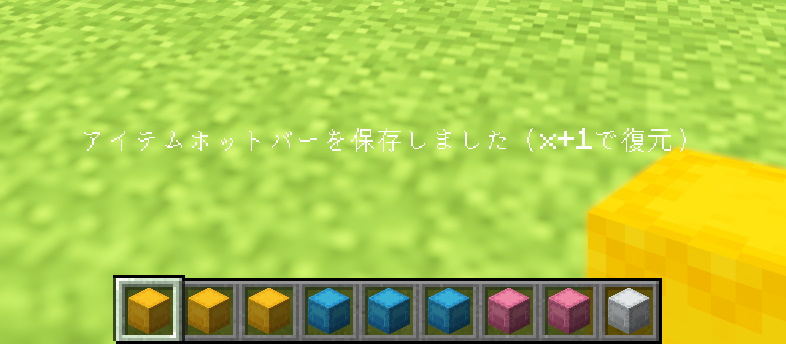
To get a placed Shulker Box (with the contents kept), either break it, or use the pick-block shortcut Ctrl+Mouse Wheel.
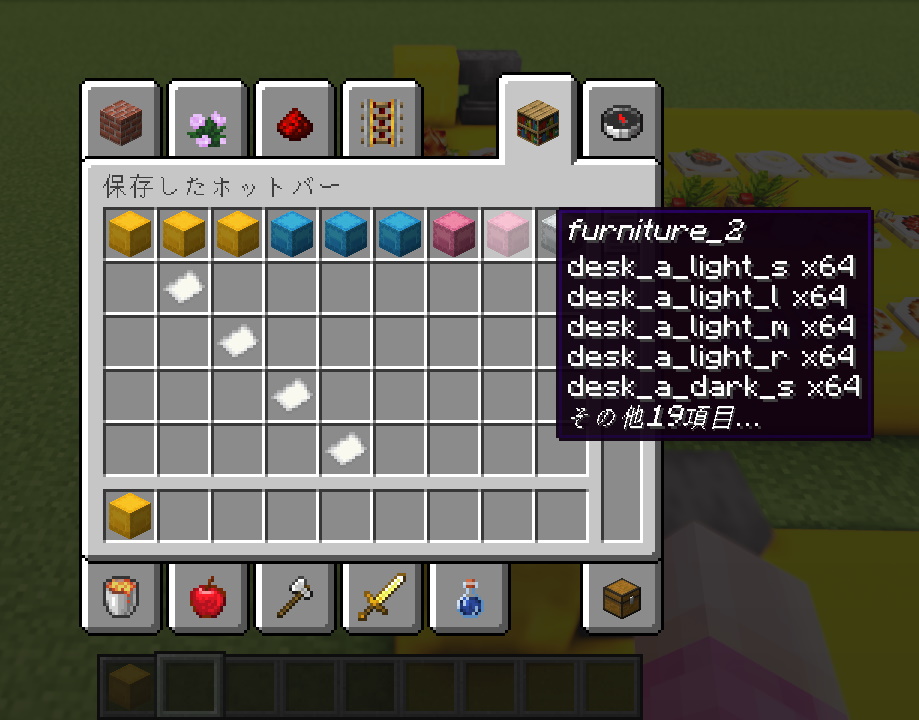
Then press C+1 to save the hotbar into slot 1!
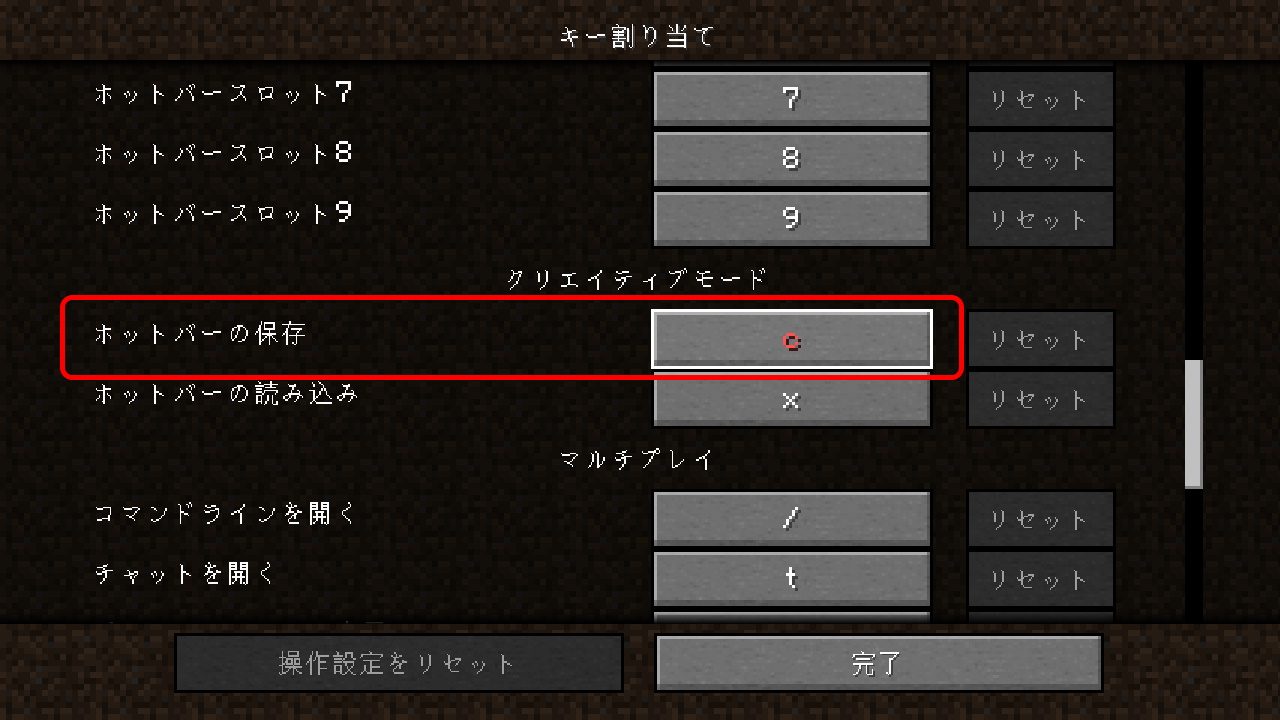
If saving doesn’t work, set the “Save Hotbar Activator” key in your key bindings. Since you’re using OptiFine, the C key may be assigned to the zoom feature, and this setting could be unbound.
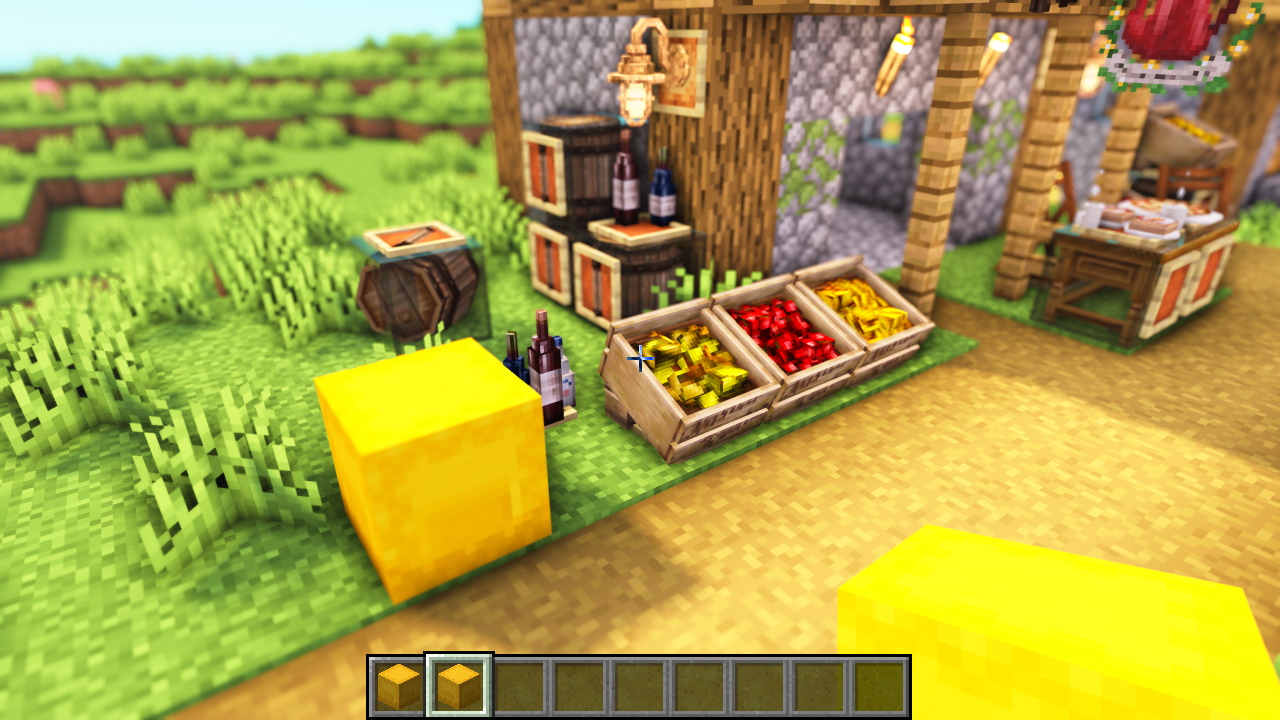
Once you save the hotbar, you can place Shulker Boxes filled with CIT items even in other worlds!
📌 The 3D models added by the CIT packs are obtained by renaming “Sugar.” You can check exactly which name produces which model in this catalog!